
Laptop Upgrade Guide
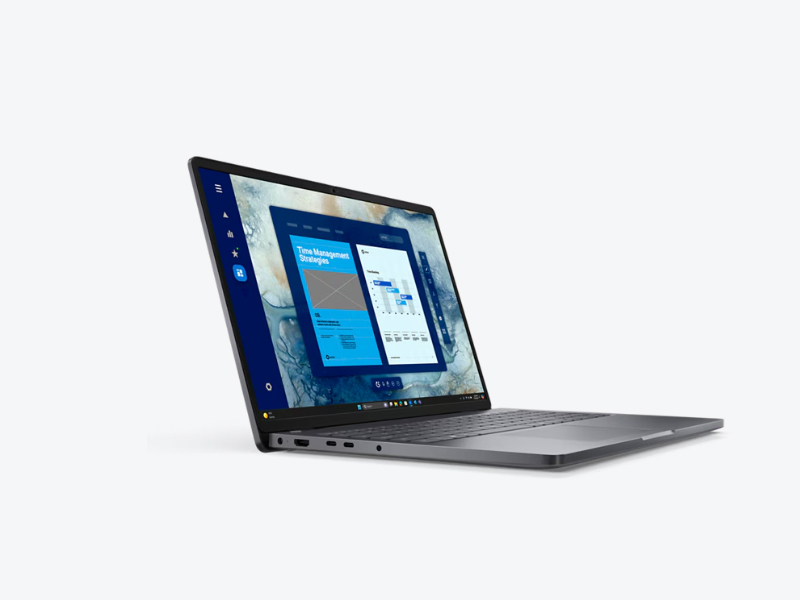
Dell Pro 16 PC16250 (2025)
Model PC16250 · Released 2025
- Max RAM
- Max 64 GB5200/5600 MT/s
- RAM Slots
- 2 SO-DIMM Slots
- Storage
- 1× M.2 2230
Specs at a glance
| Memory Type & Speed (MT/s) | DDR5 · 5200 / 5600 MT/s |
|---|---|
| RAM Slots | 2 SO-DIMM Slots |
| Official OEM Max | 64 GB |
| M.2 Form Factor | M.2 2230 |
| Storage Interface | PCIe Gen 4 x4 NVMe |
| Battery | Not documented |
Recommended Upgrade Parts
Shop compatible upgrades for Dell Pro 16 PC16250 (2025)
Ordered for best value and compatibility: 1. M.2 NVMe SSD → 2. Compatible RAM Kit → 3. Precision Installation Toolkit.
1TB M.2 2230 PCIe 4.0 NVMe SSD
Best overall match for Dell Pro 16 PC16250 (2025): upgrading to a 1TB M.2 2230 PCIe 4.0 NVMe SSD delivers immediate boot and transfer speed gains and stays insulated from 2026 DRAM price volatility.
Compact M.2 2230 PCIe 4.0 NVMe drive engineered for short-bay chassis.
Shop WD_BLACK SN770M 1TB M.2 2230 NVMe SSD on AmazonKingston FURY Impact 64GB (2x32GB) DDR5 5600MHz SODIMM
Matched to 64GB (2x32GB) DDR5 5600MHz SODIMM specs for this memory controller.
Shop 64GB (2x32GB) DDR5 (5600MHz) SODIMM RAM on AmazoniFixit Essential Electronics Toolkit
Precision Torx/Phillips bits and nylon pry tools for safe bottom-cover removal without stripping screws.
iFixit Essential Electronics ToolkitUGREEN 10Gbps USB-C M.2 2280 NVMe SSD Enclosure
Only one internal M.2 slot documented: clone your factory OS drive into this USB-C enclosure before swapping.
Shop USB-C M.2 NVMe Enclosure (For OS Cloning) on AmazonDisclosure: As an Amazon Associate, we earn from qualifying purchases at no extra cost to you.
Can you upgrade this laptop?
Memory on the Dell Pro 16 PC16250 (2025) supports DDR5 upgrades across 2 SO-DIMM slots, up to an official 64 GB OEM ceiling.
Storage is documented with 1 physical storage slot (M.2 2230).
All findings below are cross-referenced against 1 cited manufacturer or technical document.
Dual DDR5 SO-DIMM & M.2 2230 Configuration
Memory
✅UpgradeableMaximum 64 GB (32 GB/slot)
DDR5 · 5200 / 5600 MT/s
SO-DIMM
2 RAM slots
Storage
✅Upgradeable / replaceable1 physical slot
- M.2 2230 · PCIe Gen 4 x4 NVMe · up to 2 TB
Architecture & Compatibility Notes
Dell Pro 16 PC16250 (2025) Memory & Storage Architecture
1. Memory Architecture & Channel Design
The Dell Pro 16 PC16250 (2025) uses 2 SO-DIMM slots supporting DDR5 rated up to 5200 / 5600 MT/s, with an official OEM limit of 64 GB. Installing an identical kit across populated channels maximizes memory throughput for integrated graphics and multi-threaded tasks.
Inspect how many SO-DIMM slots ship occupied in your specific SKU before buying, as single-stick factory configs only need one matching stick while 2x configs require a full kit swap.
2. M.2 NVMe Interface & Thermal Clearance
The Dell Pro 16 PC16250 (2025) includes 1 M.2 slot wired for M.2 2230 over PCIe Gen 4 x4 NVMe (tested up to 2 TB per slot). PCIe NVMe drives are cross-generation compatible—Gen 4 SSDs operate safely at Gen 3 bandwidth in Gen 3 slots—while physical chassis clearance strictly requires matching the M.2 2230 standoff length.
Re-seat or transfer any factory copper foil or silicone thermal pad onto the replacement NVMe controller and avoid tall desktop heatsinks that interfere with bottom panel closure.
3. Architecture & Hardware Compatibility Notes
SO-DIMM & M.2 Slot Match
Memory uses SO-DIMM (DDR5 rated up to 5200 / 5600 MT/s); storage accepts M.2 2230 (PCIe Gen 4 x4 NVMe) drives.
Internal Battery Isolation Before Board Work
Unplug external power, remove the bottom cover, and disconnect the internal battery header before touching memory latches or M.2 standoffs.
DDR5 Cold-Boot Memory Training
Allow 30–90 seconds on initial power-on after a memory swap while the DDR5 controller completes first-boot training before entering BIOS.
Sources (1)
See an outdated specification or missing sub-model detail? Report a source-backed correction.
Frequently Asked Questions
What is the maximum RAM supported by Dell Pro 16 PC16250 (2025)?
The Dell Pro 16 PC16250 (2025) supports a documented OEM maximum of 64 GB of DDR5 at 5200 / 5600 MT/s across 2 user-accessible SO-DIMM slots, making post-purchase memory expansion straightforward.
Does Dell Pro 16 PC16250 (2025) have an extra M.2 SSD slot for storage upgrade?
The Dell Pro 16 PC16250 (2025) includes 1 M.2 slot supporting M.2 2230 drives over PCIe Gen 4 x4 NVMe (up to 2 TB). Because there is only one internal bay documented on most configurations, expanding capacity typically means cloning and swapping the primary drive.
What RAM speed and type does Dell Pro 16 PC16250 (2025) use?
The Dell Pro 16 PC16250 (2025) uses DDR5 running at 5200 / 5600 MT/s. Because it provides 2 SO-DIMM slots, installing a matched dual-channel pair boosts memory bandwidth and integrated graphics performance significantly.
Is it safe to upgrade the RAM and SSD on Dell Pro 16 PC16250 (2025) yourself?
Yes, as long as you follow basic precautions: power the Dell Pro 16 PC16250 (2025) completely off, unplug the AC charger, and disconnect the internal battery cable before touching the motherboard. Use a precision Torx/Phillips driver and a nylon spudger so bottom-cover plastic clips do not snap (and under the US Magnuson-Moss Warranty Act, upgrading compatible parts will not void Dell's base warranty unless physical damage occurs). Check compatible parts above in Recommended Upgrade Parts (#recommended-upgrades).
Helpful upgrade guides
Learn compatibility fundamentals before installing new hardware.
Similar Models
Compare memory limits, SO-DIMM slots, and M.2 NVMe expansion across similar models.
Dell 15 DC15250 (2025)
Dell Alienware 16 & 18 Area-51 (2025)
Dell Alienware 16 Aurora AC16250 (2025)
Dell Alienware 16X Aurora (2025)
Dell Inspiron 16 5640
Lenovo Legion Pro 5 16 Gen 10 (2025)
Check your upgrade compatibility
Want to check a specific RAM or SSD capacity for this model? Open the interactive checker with Dell Pro 16 PC16250 (2025) pre-selected.
Open Laptop Upgrade Checker